PWA Installation Guide
Ting Reader supports PWA (Progressive Web App) technology. You can install the website as a native app on your phone or computer desktop for a more immersive experience.
HTTPS is required
PWA functionality relies on Service Workers, which only work in HTTPS environments (or localhost). If you access the site directly via IP (such as http://192.168.1.100:3000), the browser will not show the install option.
🔒 HTTPS & Reverse Proxy Configuration
To enable PWA and get a more secure access experience, you need to configure a reverse proxy and enable HTTPS. Two common configuration options are provided below.
Option 1: Lucky (Recommended for NAS)
Lucky is a reverse proxy tool well suited for NAS users. It has an intuitive interface and supports automatic certificate application.
1Prepare SSL certificate
In the Lucky left-side menu, select "SSL/TLS Certificate", then click "Add Certificate".
- Option A (Recommended): ACME automatic application
Enter your domain, select the DNS provider (such as Alibaba Cloud, Tencent Cloud, Cloudflare), and fill in the corresponding API Key/Token. Lucky will automatically apply for and renew the certificate. - Option B: Manual upload
If you already have certificate files (.pem/.key), you can upload them directly.
2Add Web service rule
In the left-side menu, select "Web Service", then click "Add Web Service Rule".
- Rule name: Fill in anything, for example
TingReader. - Listening port: This is the port you will use to access from the public network.
For example, enter16666, and the access URL will behttps://your-domain.com:16666. - TLS: must be enabled.
Lucky will automatically match the certificate added in the first step, no need to select manually (make sure the switch is on).
3Configure reverse proxy sub-rule
In the rule you just created, find the "Sub-rule" area, then click "Add Sub-rule".
If you want to restrict access to a specific domain, fill in your domain (such as book.example.com).
If not restricted (any domain pointing to this IP can access), leave blank or fill in *.
This is the actual address of Ting Reader on the LAN.
- Same machine deployment (Host network):
http://127.0.0.1:3000 - Cross-machine/container access:
http://NAS_IP:3000
🎉 After configuration is complete, save all settings. In the browser, enter https://your-domain:listening-port. Seeing the small lock icon in the address bar means the configuration is successful.
Option 2: Nginx (General)
Add the following to your Nginx configuration file:
server {
    listen 443 ssl;
    server_name your.domain.com;

    ssl_certificate /path/to/fullchain.pem;
    ssl_certificate_key /path/to/privkey.pem;

    location / {
        proxy_pass http://127.0.0.1:3000;
        proxy_set_header Host $host;
        proxy_set_header X-Real-IP $remote_addr;
        proxy_set_header X-Forwarded-For $proxy_add_x_forwarded_for;
        proxy_set_header X-Forwarded-Proto $scheme;

        # 保持连接 (性能优化)
        proxy_http_version 1.1;
        proxy_set_header Connection "";
    }
}
Key configuration notes
server_nameYour domain. For examplebook.example.com. Make sure this domain has been resolved to your server IP.ssl_certificateSSL certificate public key file path (usually ending in.pemor.crt).ssl_certificate_keySSL certificate private key file path (usually ending in.key). Please note the file permissions and make sure Nginx has permission to read it.proxy_passTing Reader backend address. If Nginx and the app are on the same machine, usually fill inhttp://127.0.0.1:3000.proxy_set_headerUsed to pass the client's real IP, protocol, and other information to the backend application. This is very important for logging and security verification.
📱 Mobile PWA Install (Chrome)
1. Open the browser menu
In the Chrome browser, visit your site (HTTPS required), click the three-dot icon in the upper right (or lower right) corner to open the browser menu.
.jpg)
2. Add to Home Screen
Find the "Add to Home Screen" or "Install app" option in the menu, then click it.
.jpg)
3. Confirm installation
The system will pop up a confirmation dialog, click "Install".
.jpg)
4. Finish adding
Wait a moment, and the app icon will appear on your phone's home screen. After that, you can tap the icon directly to enter just like using a native app, and enjoy a full-screen borderless experience.
.jpg)
💻 Desktop PWA Install (Edge)
On desktop (Windows/macOS/Linux), Edge or Chrome browser is recommended.
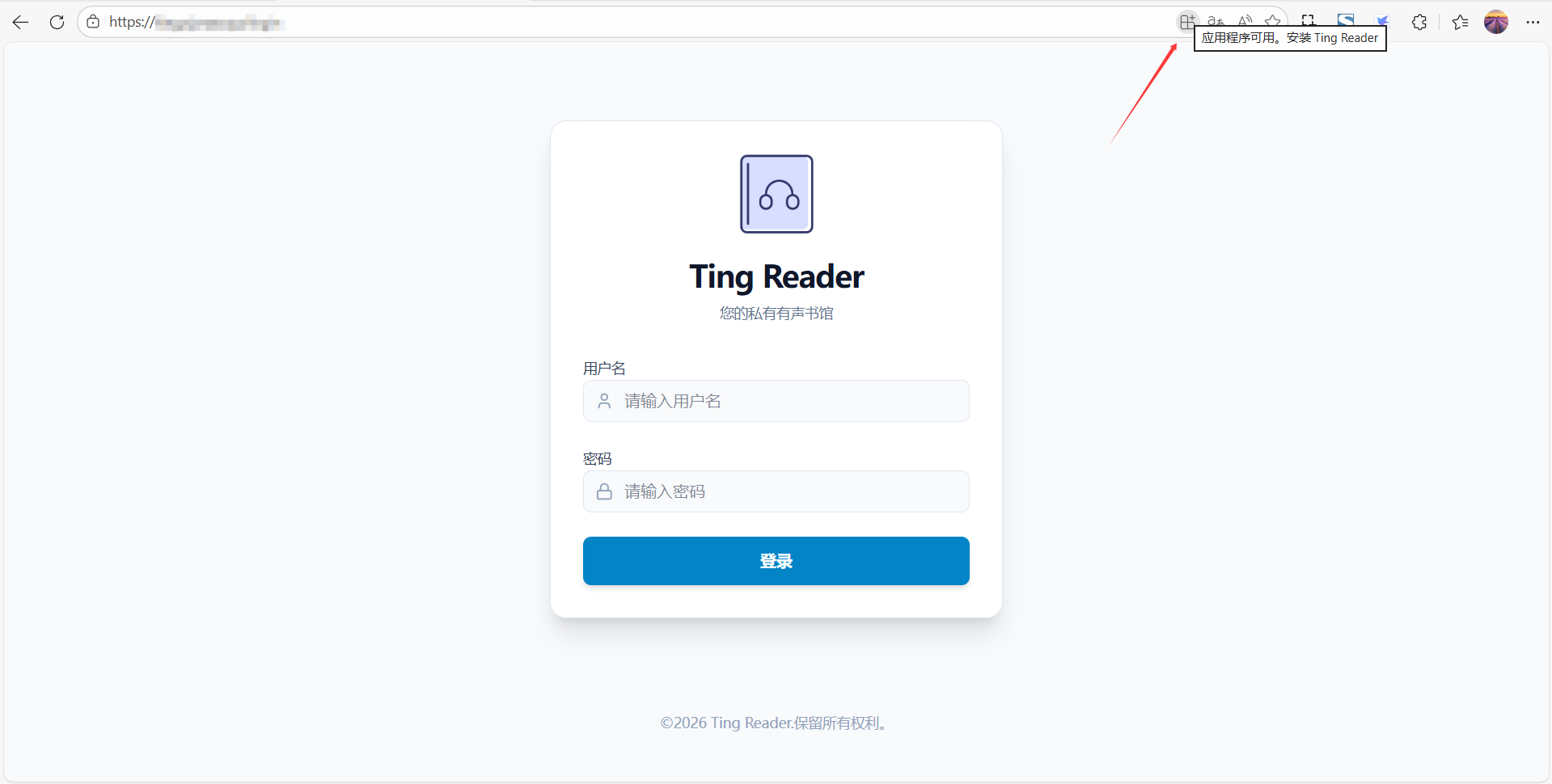
One-click install
When you access the site via HTTPS, an "app install" icon will appear on the right side of the browser's address bar (usually a plus or square icon). Click this icon, then click "Install".