Quick Start
Ting Reader is a self-hosted audiobook platform. Simply place your audiobook audio files in a NAS/cloud drive (WebDAV supported), and you can stream, resume playback, and sync progress anytime on your phone or computer.
🚀 Deployment
Recommended: If you are using a Fygo NAS, we recommend deploying with a one-click FPK installation package — simple and fast.
1. Interactive Linux deployment
For Linux amd64/arm64. The script detects the architecture and interactively configures the language, release, host binding, port, data paths, and local audiobook libraries.
curl -fsSL https://www.tingreader.cn/deploy.sh | bashPost-deployment commands
# Check service status
sudo systemctl status ting-reader

# Follow service logs
sudo journalctl -u ting-reader -f

# Add and authorize another local library
ting-reader-library

# Interactively update while preserving configuration and data
ting-reader-update

# Safe uninstall
ting-reader-uninstall
ting-reader-library grants read-only or read-write access through Linux ACLs. The uninstaller removes only verified Ting Reader frontend and backend files; application data, plugins, caches, and the default media library require separate confirmation, while additional media libraries are never removed automatically.
If the local update or uninstall command is unavailable, run:
# Update
curl -fsSL https://www.tingreader.cn/update.sh | bash

# Uninstall
curl -fsSL https://www.tingreader.cn/uninstall.sh | bash
2. Fygo NAS App Store Install
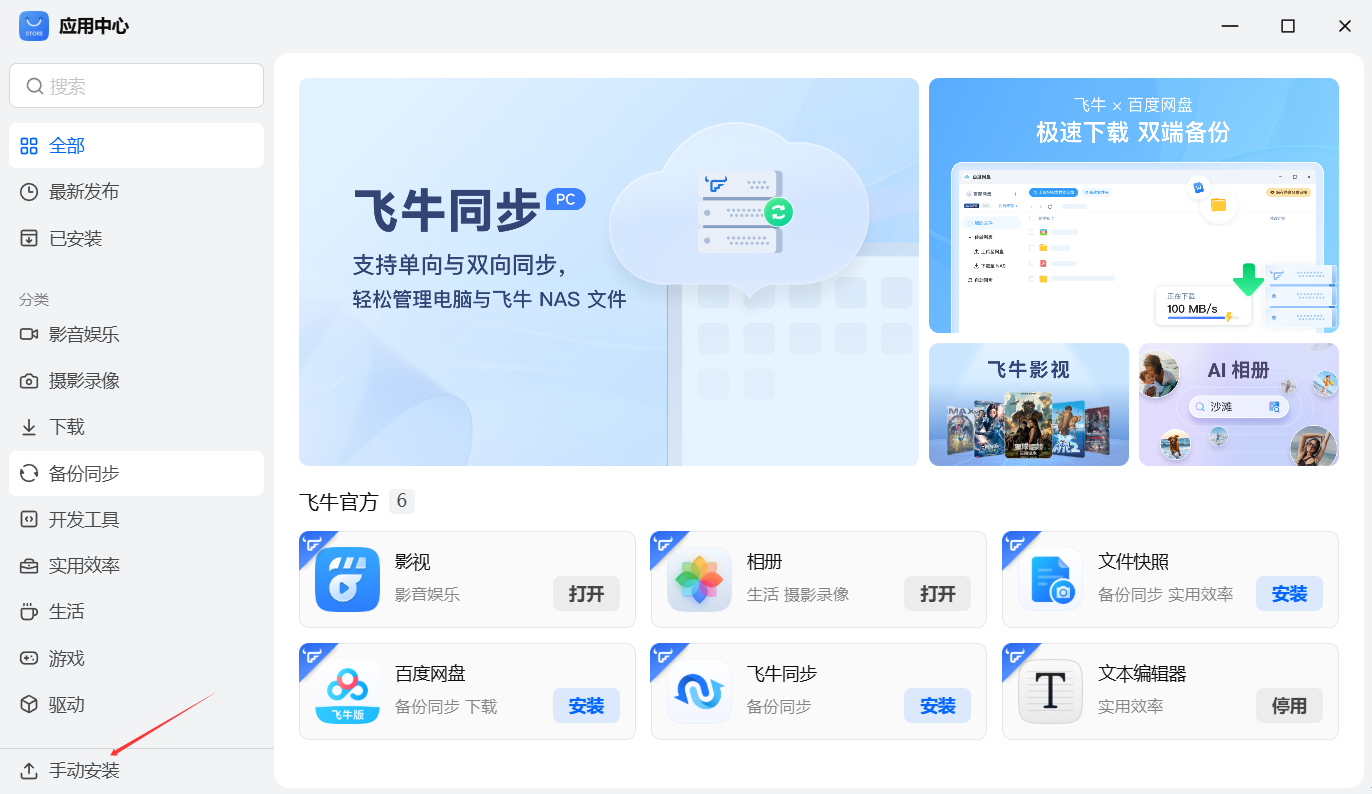
Step 1: Import the installation package
Go to the App Center, click Manual Install in the bottom right corner, and import the downloaded FPK file.
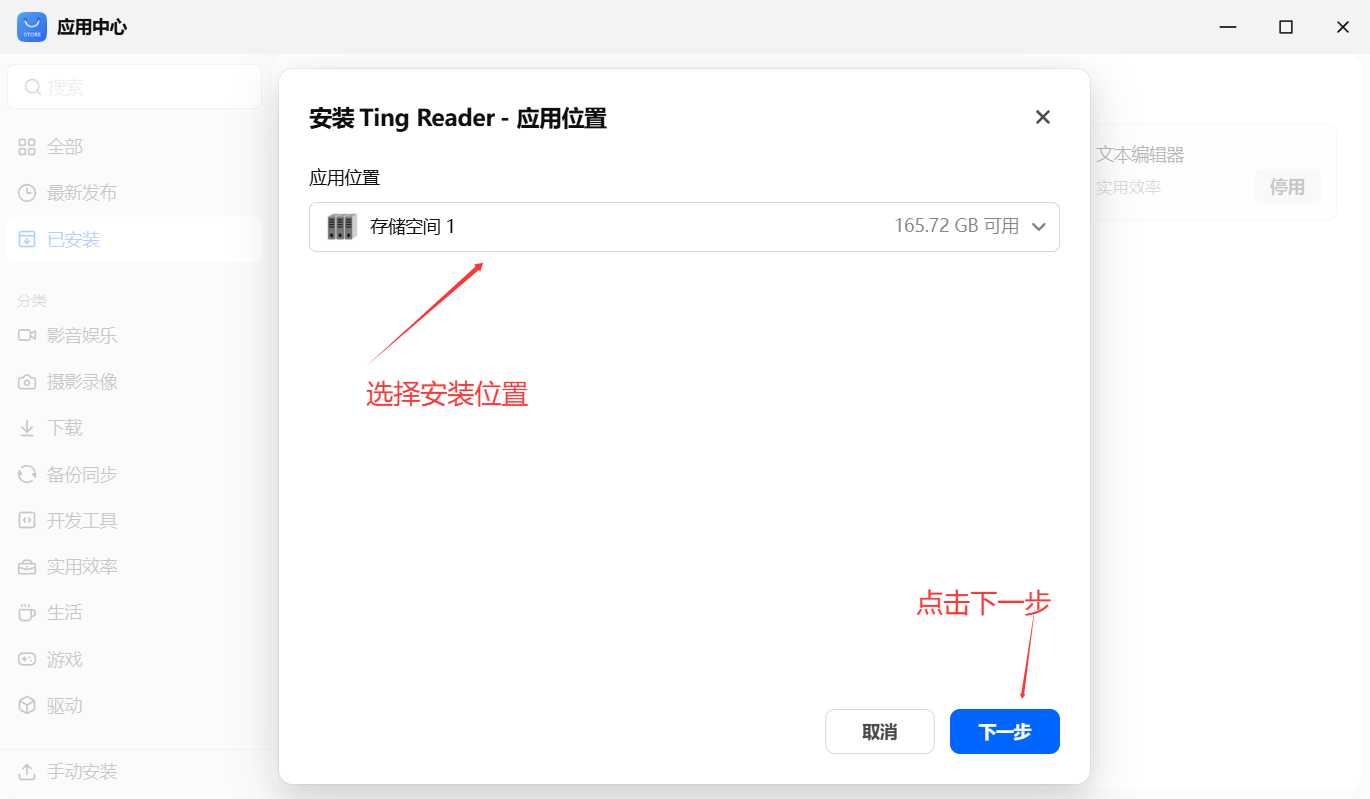
Step 2: Choose the installation location
Choose the installation location and click Next.
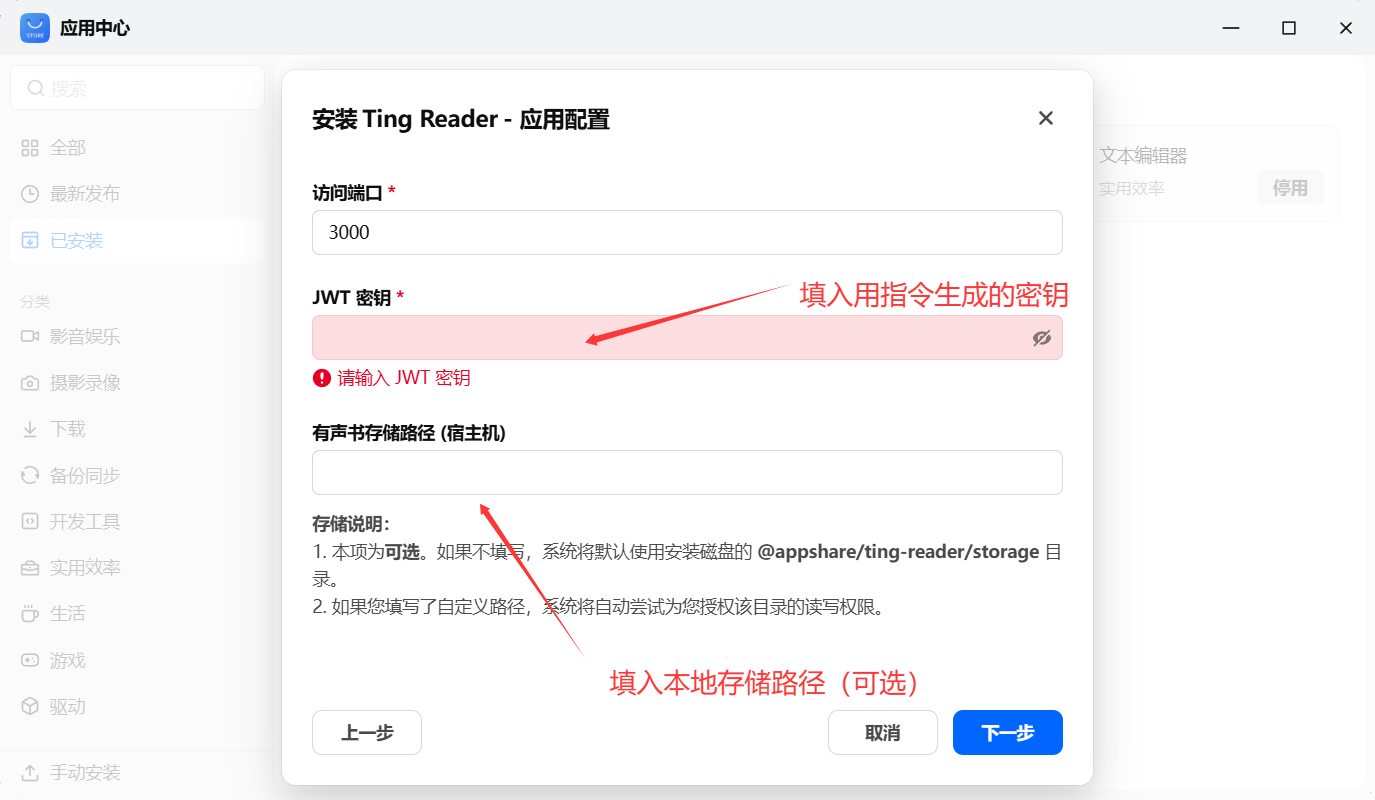
Step 3: Application configuration
- JWT secret: Usually no need to fill in; the server will generate and persist it automatically. If you need a fixed secret or are migrating an instance, run
openssl rand -base64 32in the command line and fill in the result. - Storage path: Enter the local storage path for audiobooks (optional).
After configuration, click Next, then click OK and wait for the installation to finish (the container image is large, please be patient on the first install).
AdvancedNative app permission configuration
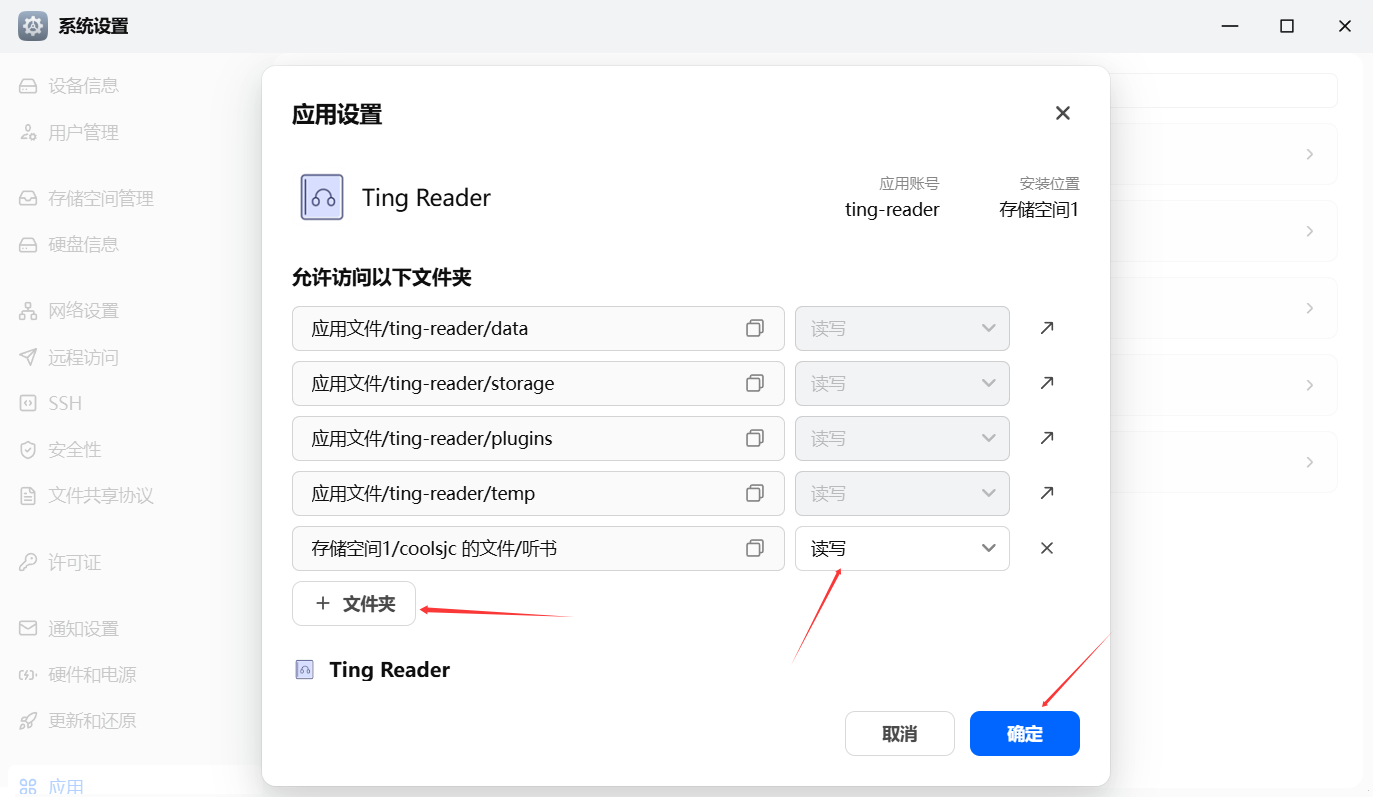
If you are using a Native FPK and have customized the local audiobook storage path, you need to manually grant folder read/write permissions:
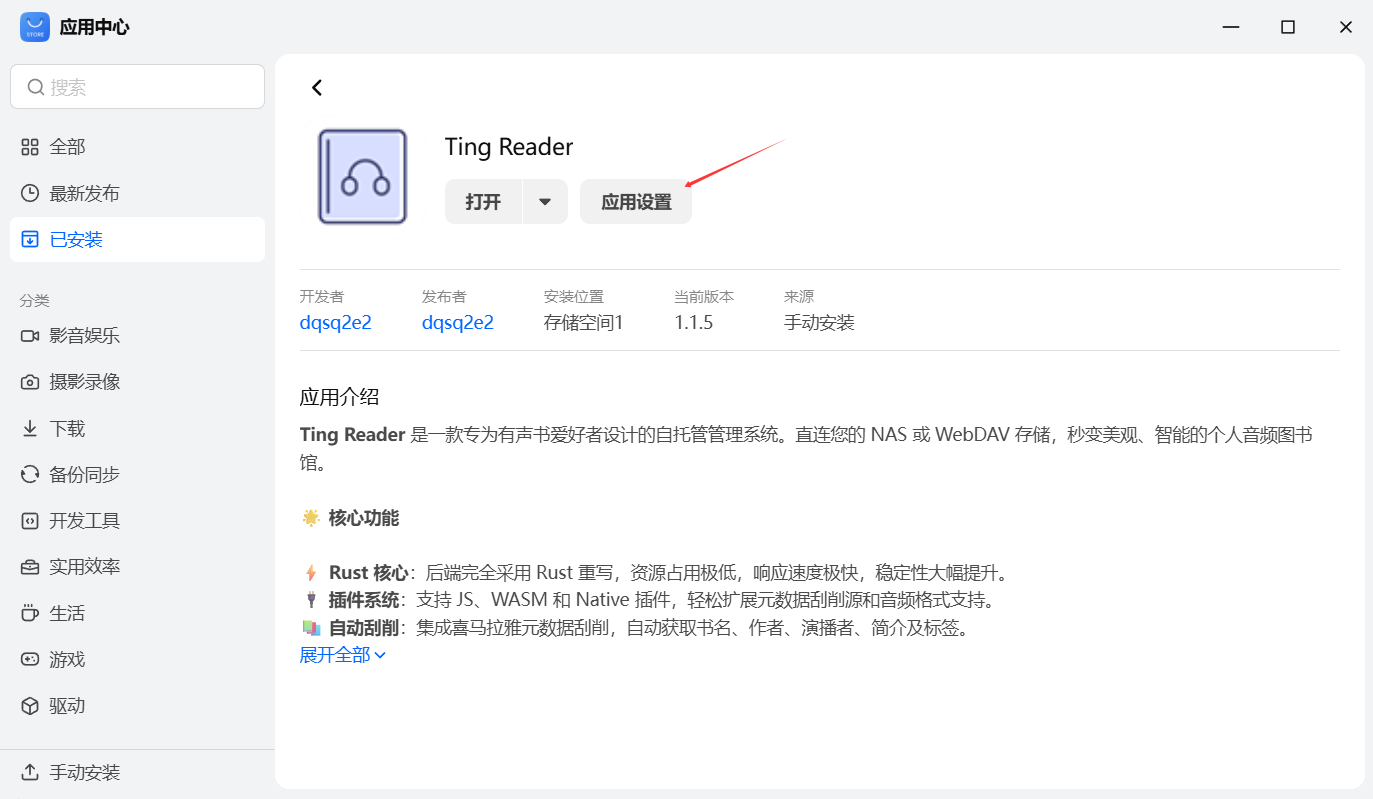
- Open app settings: Find Ting Reader under App Center > Installed, and click the app icon to enter the details page.
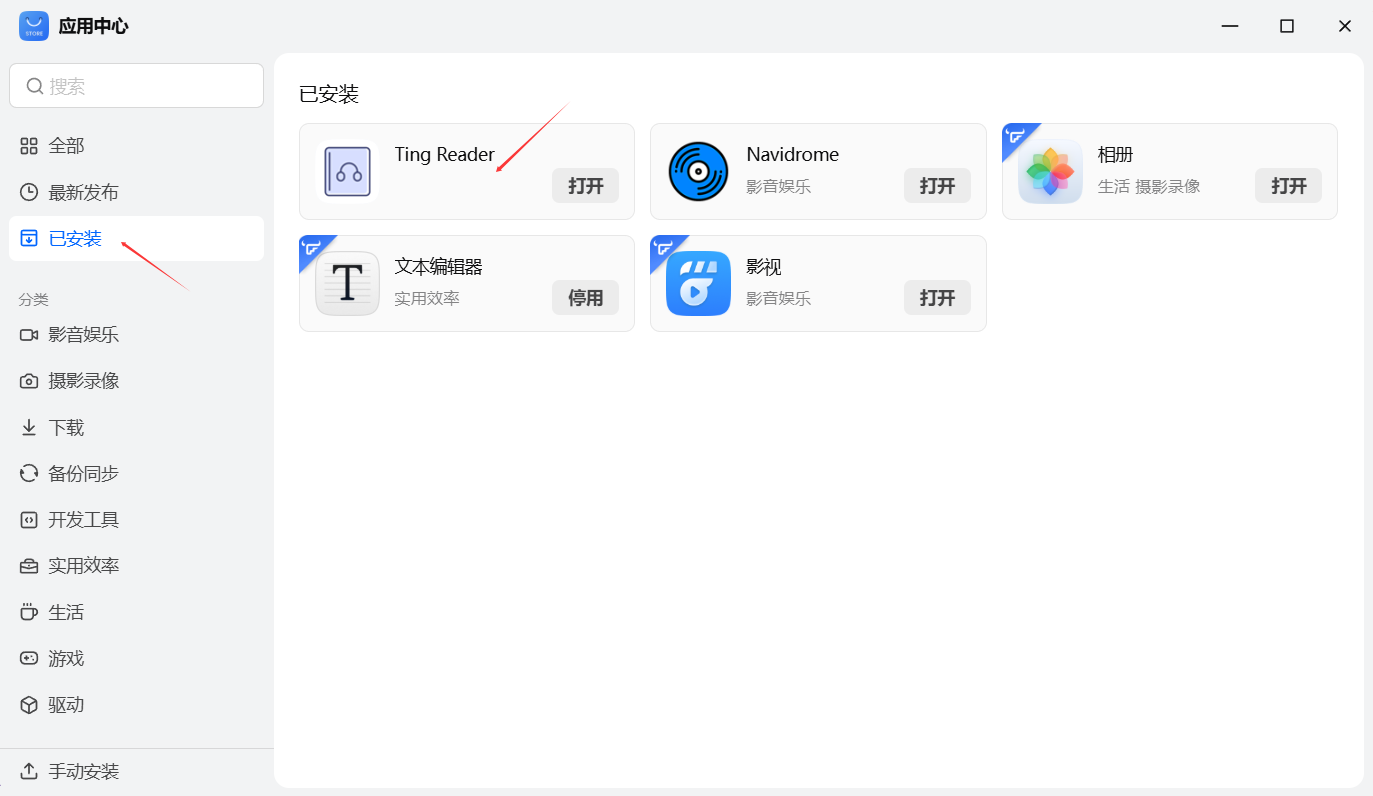
- Enter permission management: Click the App Settings button.
- Add folder permissions: Click Folder, add your custom audiobook storage directory, check the Read/Write permission, and finally click OK to save.
3. Docker Container Deployment (General)
Applicable to all Docker-supported systems (Synology, QNAP, Linux servers, etc.).
Docker Compose
services:
  ting-reader:
    image: dqsq2e2/ting-reader:latest
    container_name: ting-reader
    ports:
      - "0.0.0.0:3000:3000"
      # 如需 IPv6 访问,请先确认 Docker 主机已启用 IPv6,再取消下一行注释:
      # - "[::]:3000:3000"
    volumes:
      - /path/to/data:/app/data
      - /path/to/plugins:/app/plugins
      - /path/to/temp:/app/temp
      - /path/to/storage:/app/storage
    restart: always
    environment:
      - RUST_LOG=info
      - TING_SERVER__HOST=0.0.0.0
      - TING_SERVER__PORT=3000
      # 可选:未配置时服务端会自动生成并持久化 JWT 密钥。
      # 固定密钥仅在迁移实例或多副本共享登录状态时需要。
      # - TING_SECURITY__JWT_SECRET=ting_reader_jwt_secret_change_me_in_prod
      - TEMP_DIR=/app/temp
      - DATA_DIR=/app/data
      - STORAGE_DIR=/app/storage
📂 Storage Mapping (Volumes)
| Container path | Description | Host path example |
|---|---|---|
/app/data | Stores database files (sqlite) and config files; make sure to persist this | ./data |
/app/plugins | Stores plugin files, such as scrapers | ./plugins |
/app/storage | Directory for audiobook audio files; the app scans this directory for books | /mnt/audiobooks |
/app/temp | Stores cover image cache and transcoded temporary files | ./temp |
⚙️ Environment Variables
- TING_SECURITY__JWT_SECRET: Optional. When unset, the server generates and persists the secret automatically; you only need to specify a fixed value when migrating instances, restoring backups, or sharing login state across multiple replicas.
- IPv6 access: Docker requires IPv6 to be enabled on both the host machine and the Docker daemon, and you need to add
"[::]:3000:3000"toports. When running the binary directly, setTING_SERVER__HOSTto::to listen on an IPv4/IPv6 dual stack. - TING_SERVER__PORT: The port listened on inside the container, defaulting to 3000. Usually no need to change this; just modify the
portsmapping (e.g."8080:3000"). - DATA_DIR: Data storage directory, default
/app/data.
🧩 Plugin Installation
The system supports installing plugins to extend functionality (such as metadata scraping sources).
- Download the required
.trplugin package from the plugin author or official release channel. - Log in to the admin backend, go to System Settings > Plugin Management, and upload to install.
- Plugins are hot-pluggable and take effect immediately after installation.
Save it as docker-compose.yml and run docker-compose up -d to start.
4. First Login
Default account information
Access URL: http://ip:3000
Username: admin
Password: admin123
* For your security, please change your password immediately after logging in.
5. Remote Access & SSL (Recommended)
For a better experience (especially for mobile PWA and audio playback), we recommend configuring HTTPS access.
- Reverse proxy: We recommend using tools like Nginx Proxy Manager or Lucky for the reverse proxy.
- Certificate: You can apply for a free SSL certificate via Let's Encrypt.
- Port mapping: On your router, map the external port to the NAS reverse proxy port.